Updated: November 18, 2026
A technical SEO audit is a check of the technical parts of a site that help search engines crawl, index, and rank it. It looks at crawl errors, sitemaps, robots.txt, site speed, mobile use, HTTPS, and on-page tags. It then lists the fixes in rank order, so you fix the worst issues first.
This guide shows how to perform a technical SEO audit, step by step. It covers crawl, index, site structure, links, duplicate content, HTTPS, status codes, Core Web Vitals, JavaScript, and AI search. For the code side in more depth, see our SEO for developers guide. For local help, see our local SEO services.
Key Takeaways
- A technical SEO audit finds issues that stop search engines from reading a site.
- Run an audit on a set plan, and repeat it when the site changes.
- Fix crawl, index, speed, and HTTPS issues before you fix small details.
- Check Core Web Vitals, JavaScript rendering, and AI search in each new audit.
Table of Contents
- What Is a Technical SEO Audit?
- How to Perform a Technical SEO Audit
- Spot and Fix Crawlability and Indexability Issues
- Audit Your Site Architecture
- Fix Internal Linking Issues
- Spot and Fix Duplicate Content Issues
- Check for and Fix HTTPS Issues
- Find and Fix Problematic Status Codes
- Check Core Web Vitals
- Check JavaScript Rendering
- Check llms.txt and AI Search
- Technical SEO Audit for a Local Business
- Frequently Asked Questions
What Is a Technical SEO Audit?
A technical SEO audit checks the technical health of a site. It looks at how search engines crawl the site, how they index it, and how fast it loads. It also checks the site structure, the links, and the security of the site.
Key areas in a technical SEO audit include:
- URL structures: Clean URLs that are easy to crawl and easy to read.
- Site speed: Fast load times, as search engines favour fast sites.
- Mobile use: A site that works well on a phone.
- HTTPS: A site served over a secure connection.
- XML sitemap and robots.txt: Files that guide crawlers to the right pages.
- 301 redirects: Correct redirects for moved pages.
- 404 errors: Broken links that lead to pages that do not exist.
Use a crawler tool to collect the data, then check the results in Google Search Console. Fix the issues in rank order, and test each fix after you make it.
How to Perform a Technical SEO Audit
To start a technical SEO audit, crawl the website with a crawler tool, such as Screaming Frog. Do not crawl the site with Google Search Console. Google Search Console is not a crawler. It shows what Google found, what it indexed, and what it could not read.
- Check for crawl errors: Find pages that crawlers cannot reach or cannot read.
- Review the sitemap: The sitemap should be clean, well-ordered, and sent to Search Console.
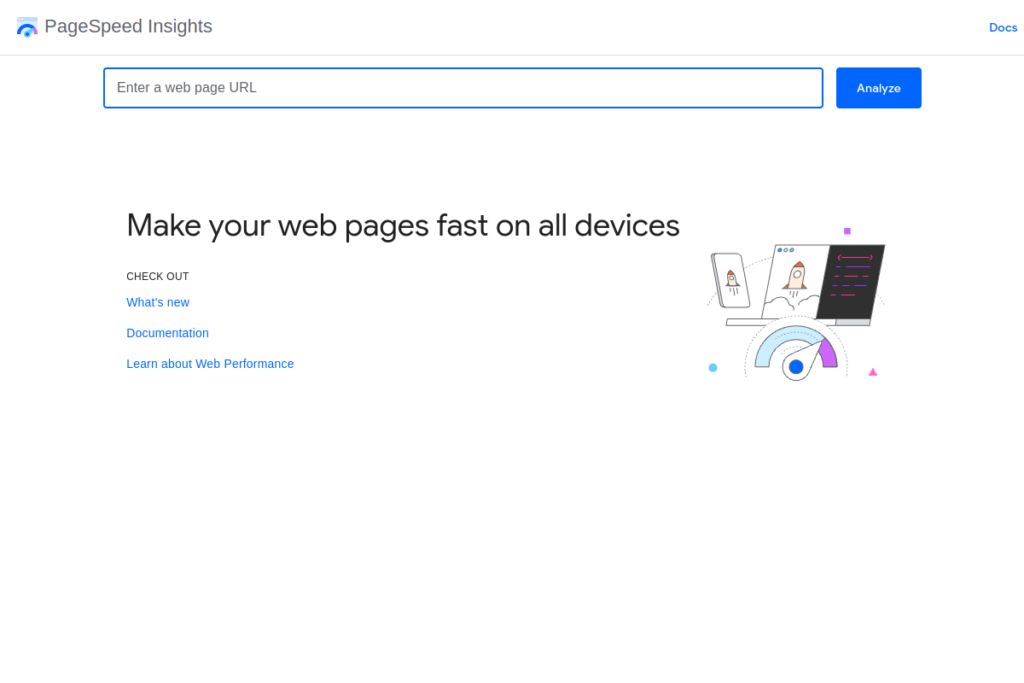
- Evaluate site speed: Use PageSpeed Insights to check load times on phone and desktop.
Next, check mobile use. Test the site on a real phone, and use PageSpeed Insights for a mobile report. The old Mobile-Friendly Test closed in December 2023, so do not use it. PageSpeed Insights now covers mobile use and speed in one place.
Next, check indexing. In Search Console, see which pages Google indexed and which pages it left out. Look for pages that should rank but do not appear in the index.
Check HTTPS next. A secure site needs a valid certificate, a forced HTTPS redirect, and no mixed content. Keep the site secure, and test the certificate after each change.
Check on-page elements last in this first pass. Title tags, meta descriptions, and headings (H1, H2, and H3) should match the page topic. Google says multiple H1s are fine. Use one H1 for the main topic where you can, but do not treat a second H1 as an error by itself.
Lastly, check internal and external links. Broken links can cut trust and waste crawl time. Fix them, and keep redirects to a short list.
| Element | Status | Notes |
|---|---|---|
| Crawl | Pass / Fail | Note crawl errors and blocked pages. |
| Sitemap | Pass / Fail | Note old or missing URLs. |
| Speed | Pass / Fail | Note slow pages and slow files. |
| Mobile | Pass / Fail | Note layout and tap issues. |
| HTTPS | Pass / Fail | Note cert and mixed content issues. |
| Links | Pass / Fail | Note broken links and redirect chains. |
Spot and Fix Crawlability and Indexability Issues
Crawlability and indexability are the base of a technical SEO audit. They make sure search engines can reach the site and store its pages. If a page cannot be crawled, it cannot rank.
Check for and Fix Robots.txt Issues
Robots.txt is a file that tells search engine crawlers which pages they may visit. Find it by adding /robots.txt to the main URL. Review it for disallow rules that block a live page by mistake.
- Remove or change a disallow rule that blocks a page you want in search.
- Keep the file short, and test it after each change.
For example, a rule such as “Disallow: /important-directory/” blocks that whole folder. Use it only when you mean to block that folder.
Spot and Fix XML Sitemap Issues
An XML sitemap is a map for search engines. It lists the pages you want them to find and index. Send it to Google Search Console, and keep it up to date.
- Check that the sitemap is up to date, with correct URLs.
- For each URL, check that the <loc> tag is present and well formed.
- Check the <lastmod> tag for each URL. It shows the date the page last changed. Note the severity of any errors, and fix the worst ones first.
- Remove broken or redirected URLs from the sitemap. The sitemap should list only live pages that return a 200 status.
Audit Your Site Architecture
Site architecture is how the pages fit together. A clear structure helps users find pages, and it helps search engines crawl them. A flat, clear structure beats a deep, tangled one.
Site Hierarchy
The site hierarchy should move from broad topics to narrow ones. Keep each main page within three clicks of the home page where you can.
- Home page: The start of the site, with clear paths to each main section.
- Main sections: The main services or topics, each easy to reach.
- Subsections: Pages grouped by topic or service, under each main section.
Navigation
Navigation is the guide that helps users and search engines move through the site. It should be clear, short, and the same on each page.
- Main menu: Links to all major sections of the site.
- Footer menu: Shortcuts to key pages, such as contact and services.
- Breadcrumbs: A path that shows where the page sits in the site.
URL Structure
Clean URLs help users and search engines. Keep URLs short, clear, and in lowercase. Use hyphens to split words, such as /about-us/.
- Hierarchy: URLs should show the page place, such as /services/local-seo/.
- Hyphens: Use hyphens, not underscores, to split words.
- Keep URLs short: Cut words that add no meaning to the URL.
Fix Internal Linking Issues
Internal links connect pages on the same site. They help users find more help, and they help search engines find new pages. They also show which pages matter most.
First, list all pages and their URLs. Use a crawler tool to find broken links, redirect chains, and orphan pages with no links at all.
- Broken links: Links that lead to pages that do not exist.
- Redirect chains: A link that leads through two or more redirects.
- Orphan pages: Pages with no internal links pointing to them.
| Issue | Action |
|---|---|
| Broken links | Fix or remove the faulty URL. |
| Redirect chains | Point the link to the final page. |
| Orphan pages | Add a link from a related page. |
- Relevance: Link to related content, not to any page.
- Anchor text: Use text that says what the linked page is about.
- Balance: Do not overload a page with links.
Breadcrumb navigation helps users see where they are on the site. It also gives search engines a clear path to each page. Add breadcrumbs to service pages and to deep pages.
Spot and Fix Duplicate Content Issues
Duplicate content can confuse search engines. They may show the wrong version of a page, or they may split the rank between two near-same pages. Google does not normally penalise duplicate content. It normally filters it and shows one version in search.
Meta Tag Issues
Meta tags should be unique for each page. Check for duplicate title tags and duplicate meta descriptions. Write a unique title and a unique description for each page.
Canonical Tag Issues
Canonical tags point to the main version of a page. Check that each canonical tag points to the right page. If a page has no canonical tag, add one where it is needed.
Hreflang Attribute Issues
Hreflang tags guide search engines to the right language version of a page. Check that each language version has a self-referencing hreflang tag. Fix any gaps, so users land on the right version.
JavaScript Issues
JavaScript can create duplicate content if search engines index a page with and without JavaScript. Use server-side rendering so the content is the same in each case. Do not use dynamic rendering as a fix, as Google no longer recommends it.
Structured Data Issues
Structured data should match the page it sits on. Give each item a unique identifier where one is needed. Test it with the Rich Results Test, and fix any errors it shows.
Check for and Fix HTTPS Issues
A technical SEO audit should check that the site is served over HTTPS. HTTPS keeps data safe between the browser and the server. It is also a small ranking signal.
Verify Certificate Validity
Check that the SSL/TLS certificate is current and that it covers the site domain. Fix an expired certificate at once, as browsers will warn users about it.
Confirm Protocol Configuration
The server should force HTTPS and redirect all HTTP requests to HTTPS. Check that the redirect is a 301, and that it points to the right page.
Check for Mixed Content
Mixed content means some files on a secure page still load over HTTP. Find each HTTP file, and change it to HTTPS. Check images, scripts, and styles in the page source.
Crawl the Site with a Tool
Crawl the site with a crawler tool that supports HTTPS, such as Screaming Frog. It can find HTTP links, mixed content, and redirect issues. Use Google Search Console to check what Google found, not to crawl the site.
Ensure HSTS is Enabled
HTTP Strict Transport Security (HSTS) tells browsers to use HTTPS for the site. Check that it is set, and test it after you change it. Keep a record of the change, with the date and the setting used.
Find and Fix Problematic Status Codes
Status codes tell browsers and search engines what happened when they asked for a page. Find the codes that hurt users, and fix them first. A clean status list helps crawlers use their time well.
3XX Status Codes
3XX codes mean the page moved. A 301 means the page moved for good. Check that each 301 points to a live, related page. Replace a 302 with a 301 when the move is for good. Cut redirect chains, so each old URL points to its final page.
4XX Status Codes
4XX codes mean the request had an error. A 404 means the page is not found. Find all URLs that return a 404 error. Set up proper 301 redirects for those with traffic and value. Remove or fix the links that lead to 404 pages.
5XX Status Codes
5XX codes mean the server had an error. A 500 means an internal server error. Check the server logs for repeat errors, and fix the cause. Watch server load, and fix slow or failing pages first.
Check Core Web Vitals
Core Web Vitals are three Google metrics for page experience. They are Largest Contentful Paint (LCP), Interaction to Next Paint (INP), and Cumulative Layout Shift (CLS). Add them to each technical SEO audit.
INP replaced First Input Delay (FID) in March 2024. FID measured only the first input delay. INP measures all inputs on the page, so it gives a fuller view of how the page reacts.
| Metric | Good | Needs work | Poor |
|---|---|---|---|
| Largest Contentful Paint (LCP) | 2.5 seconds or less | 2.5 to 4.0 seconds | More than 4.0 seconds |
| Interaction to Next Paint (INP) | 200 ms or less | 200 to 500 ms | More than 500 ms |
| Cumulative Layout Shift (CLS) | 0.1 or less | 0.1 to 0.25 | More than 0.25 |
Test Core Web Vitals in PageSpeed Insights. It shows lab data and real user data from Chrome. Fix the worst metric first. For LCP, fix slow images and slow servers. For INP, cut heavy JavaScript. For CLS, set width and height on images and ads.
Check JavaScript Rendering
JavaScript can build a page in the browser, but search engines must render it to read it. If Google cannot render the page, it may miss the main text. Add a JavaScript rendering check to each technical SEO audit.
- Compare source and rendered HTML: View the page source, then view the rendered HTML in a browser. The main text should appear in both.
- Use URL Inspection in Search Console: Test a live URL, then view the rendered HTML Google saw. Look for missing text, links, or images.
- Check key pages first: Test the home page, the main service pages, and any page built with JavaScript.
- Fix the cause, not the test: If text is missing, use server-side rendering. Do not use dynamic rendering, as Google no longer recommends it.
Check llms.txt and AI Search
AI search is a new part of a technical SEO audit. AI tools read pages and cite them in answers. Make sure they can read the site, and that they cite the right pages.
Check for an llms.txt File
An llms.txt file is a plain text file at /llms.txt. It lists the main pages of a site in a form that AI tools can read with ease. It is a new, proposed file, not a Google rule. Check if the site has one. If it does, check that the links work and that the list matches the live site.
If the site has no llms.txt file, decide if one would help. A small site with clear pages may not need one. A large site with many guides may gain from one. Keep the file short, and update it when the site changes. See llmstxt.org for the file format.
Check AI Search Visibility
- Check that robots.txt does not block AI crawlers you want to allow.
- Check that key pages have clear headings, short answers, and real facts.
- Check that the site name, service, and area are clear on each main page.
- Search for the main topics in an AI tool, and see which pages it cites.
Technical SEO Audit for a Local Business
A technical SEO audit for a local business adds a local check to each step above. The site must load fast on a phone, and each service page must match the Google Business Profile. A slow service page can lose a call before the user reads it.
- Check that the name, address, and phone match on the site and on the profile.
- Check that each service page has one clear service, one clear area, and one clear call to act.
- Check that local pages are in the index, and that they do not share the same text.
- Check that the Map Pack pages load fast, with no layout shift on a phone.
Our local SEO services start with this local check. We fix crawl, speed, and profile issues in rank order, then we track Map Pack rank and calls.
Frequently Asked Questions
How often should I run a technical SEO audit?
Run a full technical SEO audit at least twice a year. Run a short check after each site change, such as a new page, a move, or a new theme. Fix the worst issues first.
What tools do I need for a technical SEO audit?
You need a crawler tool, Google Search Console, and PageSpeed Insights. A crawler finds broken links and status errors. Search Console shows what Google indexed. PageSpeed Insights shows speed and Core Web Vitals.
Is Google Search Console a crawler?
No, Google Search Console is not a crawler. It shows what Google found, what it indexed, and what it could not read. Use a crawler tool to crawl the site, and use Search Console to check the results.
How many H1 tags can a page have?
Google says multiple H1s are fine. Use one H1 for the main topic where you can, but do not treat a second H1 as an error by itself. Clear headings matter more than the count.
What are Core Web Vitals?
Core Web Vitals are three Google metrics for page experience. They are Largest Contentful Paint, Interaction to Next Paint, and Cumulative Layout Shift. Good scores are 2.5 seconds or less, 200 ms or less, and 0.1 or less.
What is an llms.txt file?
An llms.txt file is a plain text file at /llms.txt that lists the main pages of a site for AI tools. It is a new, proposed file, not a Google rule. Check that it exists, that its links work, and that it matches the live site.
How do I test mobile-friendliness now?
Use PageSpeed Insights. The old Mobile-Friendly Test closed in December 2023. PageSpeed Insights shows mobile speed, layout, and Core Web Vitals in one report.
Wrapping Up
Staying organized and following these steps can fix the problems found in a technical SEO audit. Work through the list in order, test each fix, and repeat the audit when the site changes. A clean site helps users, and it helps search engines too.
Get a Free Local SEO Audit
Want us to run this technical SEO audit for you? We will check crawl, index, speed, HTTPS, Core Web Vitals, JavaScript, and your Google Business Profile. You keep the audit, even if you do not hire us.
Get a Free Local SEO Audit or Book a Call today. We reply within one business day.